GUI API
The GUI API (gui_api module) lets a Python script build its own user interface inside CLO:
confirmation and input dialogs, tool windows full of widgets, and dock panels that sit next to the
Library and the Object Browser. CLO draws every window and widget in its own look and theme, so a
script tool looks and behaves like part of CLO. No extra Python package is needed.
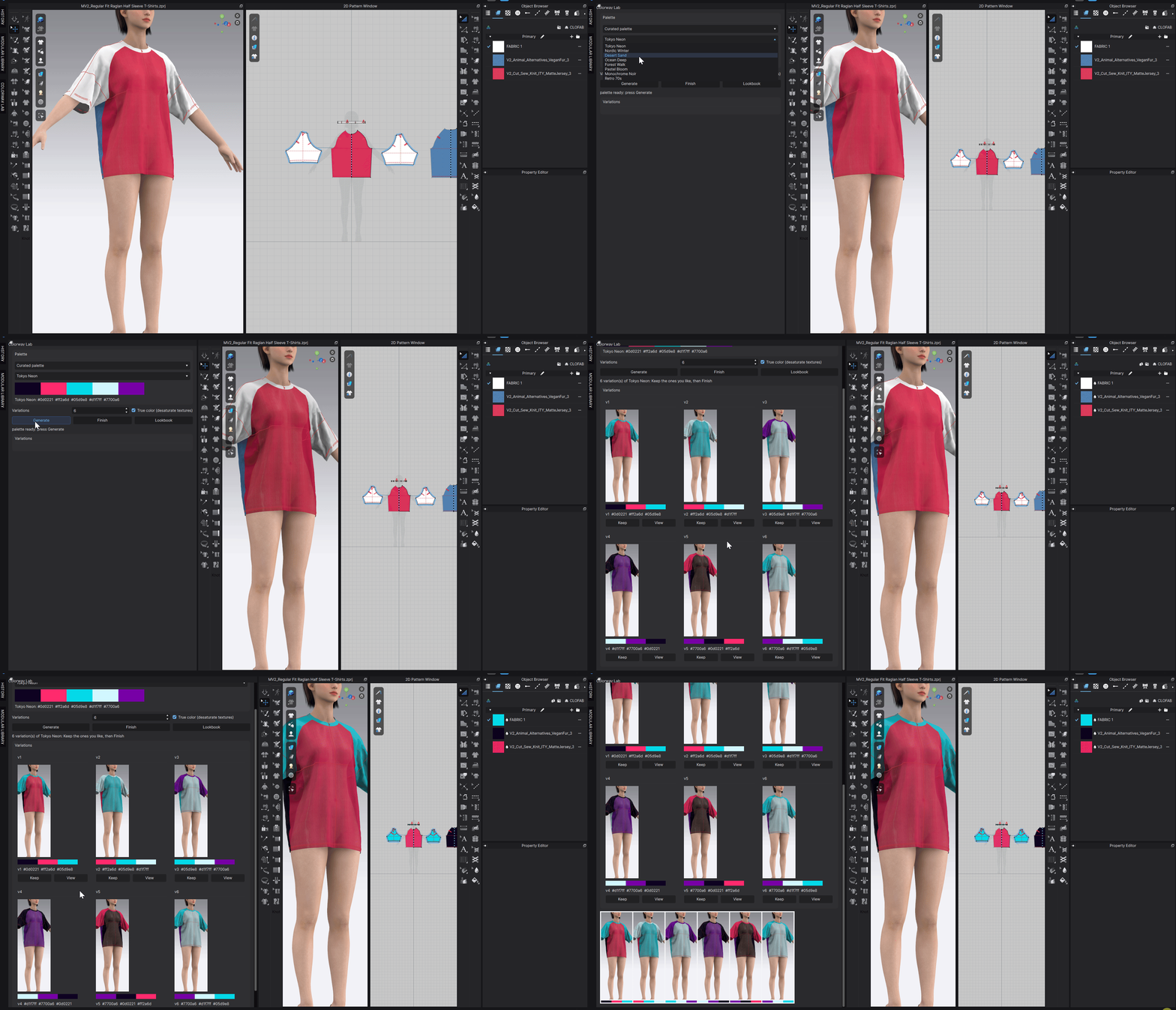
A dock panel built only with gui_api: pick a palette, generate rendered colorway options, keep the favourites. The full script is in the workflow samples.
What you can build
Ask a question and wait for the answer: yes / no, a line of text, one or several options from a list, or a small form with text, choice, check box and number fields.
Floating windows that stay open after the script has finished. Buttons, inputs, lists, tables, images, progress bars and menus call back into your script when the user uses them.
Panels that dock into the CLO main window like the Library: drag them to another side, float them, fold them into the side bar. They keep their place between sessions.
Requirements
CLO with a window. The GUI API works wherever CLO runs Python with its window open: the Python Script editor (Main Menu
 Edit Python Script), a
 .pyfile dropped onto CLO, and Python plug-ins added to the Plug-ins menu.Not in headless mode. Without a window there is nothing to draw on, so every function fails explicitly: functions that return
boolreturnFalse, functions that return a handle return0and dialog results haveaccepted == False. Check once at the top of a script:
import gui_api

if not gui_api.IsGuiAvailable():
    raise SystemExit("this tool needs the CLO window")
Your first window in five lines
import gui_api

window = gui_api.CreateToolWindow("Hello", 300, 120)
label = gui_api.AddLabel(window, "Nothing clicked yet")
gui_api.AddButton(window, "Click me", lambda: gui_api.SetWidgetText(label, "Clicked!"))
gui_api.ShowWindow(window)
The script ends right after ShowWindow, but the window stays open and the button keeps working:
CLO calls the lambda every time the button is clicked.
Key concepts
Handles
Every Create* and Add* function returns an integer handle. Use it to add children, read and
change values, enable, hide or close the widget. 0 means the call failed, for example because the
parent handle is not valid. When a window or panel is closed, every handle that belonged to it becomes
invalid; functions called with an invalid handle simply return False / 0 / "".
Three kinds of top-level UI
Kind |
Created with |
Behaviour |
|---|---|---|
Modal dialog |
|
Opens, blocks the script until the user answers and returns the answer. Nothing to clean up. |
Tool window |
|
Floating window in front of CLO. Does not block: the script continues and may end while the window stays open. |
Dock panel |
|
Same widgets as a tool window, docked into the CLO main window on the |
Layout
Widgets are added top to bottom in the order of the Add* calls. Two containers give more
structure:
AddRow(parent)lays its children out left to right.AddGroup(parent, title)draws a titled box whose children are laid out top to bottom.
Rows and groups can be nested. AddSeparator draws a thin line. When the content is taller than the
window or panel, a scroll bar appears.
Callbacks
Buttons, inputs, lists and menu items accept a Python callable. CLO calls it on the main thread every time the user interacts, also long after the script that created the window has finished.
Widget |
Callback receives |
|---|---|
|
nothing |
|
the new text ( |
|
the new state ( |
|
the new index ( |
|
the new value ( |
|
the new value ( |
Change callbacks fire on user actions only. Setting a value from the script with
SetWidgetValue or SetWidgetSelectedIndex does not call them, so a callback can update other
widgets without starting a loop.
If a callback raises an exception, CLO logs the error and keeps the window open, so a mistake in one
button does not break the whole tool. Wrap risky work in try / except and show the problem in a
status label when the user needs to see it.
Tip
A callback runs while CLO waits for it. Keep callbacks short, or tell the user that a long job is running (for example with a progress bar and a status label) before you start it.
Values are text
GetWidgetValue and SetWidgetValue exchange every value as a string, whatever the widget:
Widget |
Value |
|---|---|
Text input, text area, label, button |
the text |
Check box |
|
Drop-down, radio group, list |
the selected caption (use |
Table |
the first cell of the selected row |
Number input, slider, progress bar |
the number as text, for example |
Image |
|
Running a script again
Each run creates new windows. Start a tool script with gui_api.CloseAllWindows() so a second run
replaces the old window instead of opening another one. A dock panel created with the same name comes
back at the position the user gave it last time.
Where to go next
GUI API Tutorials: step-by-step tutorials for dialogs, a tool window, a dock panel and live previews of the 3D and 2D windows, plus complete workflow tools to download.
GUI API Reference: every function with its arguments and return value.