GUI API Tutorials
Four short tutorials build up everything the GUI API offers, from a single question to a dockable tool.
Each one is a complete script: download it, open it in the Python Script editor
(Main Menu  Edit Python Script) or drag and drop the file onto CLO, and run it.
At the end you will find complete workflow tools built the same way.
Edit Python Script) or drag and drop the file onto CLO, and run it.
At the end you will find complete workflow tools built the same way.
If you have not read it yet, GUI API explains handles, layout, callbacks and values in a few minutes. Every function is listed in the GUI API Reference.
1. Ask the user: modal dialogs
A modal dialog opens, waits for the user and returns the answer, so the script can use it on the next line. Use dialogs for a quick confirmation or a few settings before a script does its work.
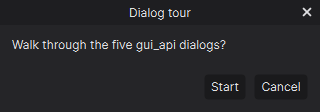
Yes or no. AskConfirm returns True only when the accept button is pressed.
if not gui_api.AskConfirm("Dialog tour", "Walk through the five gui_api dialogs?", "Start", "Cancel"):
    raise SystemExit("cancelled")
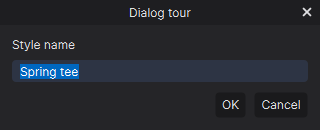
A line of text. AskText returns a result with accepted and value. Always check
accepted: the user may press Cancel or close the dialog.
name = gui_api.AskText("Dialog tour", "Style name", "Spring tee", "type a name")
if name.accepted:
    print(name.value)
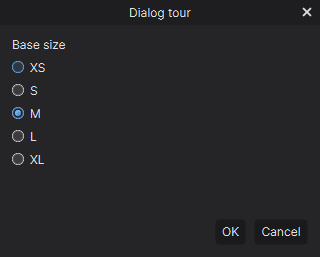
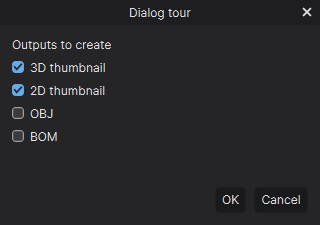
One option or several. AskChoice returns the picked index and caption, AskMultiChoice
returns every checked index in selectedIndices.
size = gui_api.AskChoice("Dialog tour", "Base size", ["XS", "S", "M", "L", "XL"], 2)
outputs = ["3D thumbnail", "2D thumbnail", "OBJ", "BOM"]
picked = gui_api.AskMultiChoice("Dialog tour", "Outputs to create", outputs, [0, 1])
print(size.selectedValue, [outputs[i] for i in picked.selectedIndices])
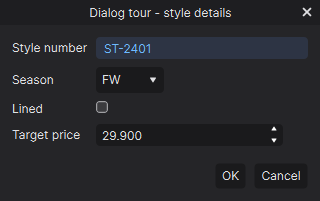
A small form. AskForm builds one row per ApiTypes.CloApiGuiFormField. Each field has a
unique key; the result maps every key to its value as text ("true" / "false" for check
boxes, decimal text for numbers).
def field(key, label, kind, default="", options=None):
    f = ApiTypes.CloApiGuiFormField()
    f.key, f.label, f.type, f.defaultValue = key, label, kind, default
    f.options = options or []
    return f

form = gui_api.AskForm("Dialog tour - style details", [
    field("style", "Style number", ApiTypes.GUI_FIELD_TEXT, "ST-2401"),
    field("season", "Season", ApiTypes.GUI_FIELD_CHOICE, "FW", ["SS", "FW", "Resort"]),
    field("lined", "Lined", ApiTypes.GUI_FIELD_CHECK, "false"),
    field("price", "Target price", ApiTypes.GUI_FIELD_NUMBER, "29.9"),
])
if form.accepted:
    values = dict(form.values)        # {"style": "ST-2401", "season": "FW", "lined": "false", "price": "29.9"}
Full script: 01_dialogs.py
# -*- coding: utf-8 -*-
"""gui_api tutorial 1: modal dialogs.

Every Ask* function opens a CLO-styled dialog, waits for the user and returns the answer.
Run it from the Python Script editor or drag and drop the file onto CLO.
"""
import ApiTypes
import gui_api

if not gui_api.IsGuiAvailable():
    raise SystemExit("gui_api needs the CLO window (it is not available in headless mode)")

# 1. Yes / no question. Returns True only when the accept button is pressed.
if not gui_api.AskConfirm("Dialog tour", "Walk through the five gui_api dialogs?", "Start", "Cancel"):
    raise SystemExit("cancelled")

# 2. One line of text. The result tells whether the user pressed OK.
name = gui_api.AskText("Dialog tour", "Style name", "Spring tee", "type a name")
print("AskText:", name.accepted, name.value)

# 3. Exactly one option.
size = gui_api.AskChoice("Dialog tour", "Base size", ["XS", "S", "M", "L", "XL"], 2)
print("AskChoice:", size.accepted, size.selectedIndex, size.selectedValue)

# 4. Any number of options. selectedIndices lists every checked option.
outputs = ["3D thumbnail", "2D thumbnail", "OBJ", "BOM"]
picked = gui_api.AskMultiChoice("Dialog tour", "Outputs to create", outputs, [0, 1])
print("AskMultiChoice:", picked.accepted, [outputs[i] for i in picked.selectedIndices])


# 5. A small form. Each field has a unique key; every value comes back as text.
def field(key, label, kind, default="", options=None):
    f = ApiTypes.CloApiGuiFormField()
    f.key = key
    f.label = label
    f.type = kind
    f.defaultValue = default
    f.options = options or []
    return f


form = gui_api.AskForm("Dialog tour - style details", [
    field("style", "Style number", ApiTypes.GUI_FIELD_TEXT, "ST-2401"),
    field("season", "Season", ApiTypes.GUI_FIELD_CHOICE, "FW", ["SS", "FW", "Resort"]),
    field("lined", "Lined", ApiTypes.GUI_FIELD_CHECK, "false"),
    field("price", "Target price", ApiTypes.GUI_FIELD_NUMBER, "29.9"),
])
if form.accepted:
    values = dict(form.values)
    print("AskForm:", values)
    gui_api.AskConfirm("Dialog tour", "Saved %s (%s, %s)" % (values["style"], values["season"], values["price"]), "OK", "Close")
2. A tool window with widgets and callbacks
A tool window is the right choice for a tool the user keeps open while working. This tutorial builds a Quick Export window that saves captures of the 3D and 2D windows with a few options.
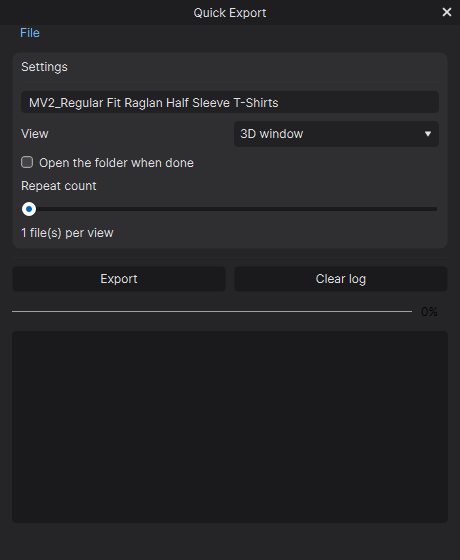
Step 1: create the window. CreateToolWindow returns the window handle. Close any window from a
previous run first.
gui_api.CloseAllWindows()
window = gui_api.CreateToolWindow("Quick Export", 460, 560)
Step 2: add a menu bar. AddMenu creates the menu bar on first use; AddMenuItem takes a
callable.
file_menu = gui_api.AddMenu(window, "File")
gui_api.AddMenuItem(file_menu, "Open output folder", lambda: open_folder(OUTPUT))
gui_api.AddMenuItem(file_menu, "Close", lambda: gui_api.CloseWindow(window))
Step 3: lay out the inputs. A group collects related settings, a row puts a label next to its drop-down. Keep every handle you need later in a dictionary.
ui = {}
settings = gui_api.AddGroup(window, "Settings")
ui["name"] = gui_api.AddTextInput(settings, utility_api.GetProjectName() or "untitled", "file name")
row = gui_api.AddRow(settings)
gui_api.AddLabel(row, "View")
ui["view"] = gui_api.AddDropdown(row, ["3D window", "2D window", "Both"], 0)
ui["open"] = gui_api.AddCheckBox(settings, "Open the folder when done", False)
ui["count"] = gui_api.AddSlider(settings, 1, 1, 5,
                                lambda v: gui_api.SetWidgetText(ui["count_label"], "%d file(s) per view" % v))
ui["count_label"] = gui_api.AddLabel(settings, "1 file(s) per view")
The slider callback receives the new value and updates a label right away.
Step 4: read the values when the user acts. The button callback reads every input with
GetWidgetValue / GetWidgetSelectedIndex, does the work and reports progress.
def export():
    base = gui_api.GetWidgetValue(ui["name"]).strip() or "untitled"
    view = gui_api.GetWidgetSelectedIndex(ui["view"])          # 0, 1 or 2
    count = int(gui_api.GetWidgetValue(ui["count"]))           # slider value as text
    ...
    gui_api.SetWidgetValue(ui["progress"], str(percent))       # progress bar 0..100
    if gui_api.GetWidgetValue(ui["open"]) == "true":           # check box
        open_folder(OUTPUT)

actions = gui_api.AddRow(window)
gui_api.AddButton(actions, "Export", export)
Step 5: show it. ShowWindow displays the window. The script ends, the window stays.
SetWindowCloseCallback lets you react when the user closes it.
gui_api.SetWindowCloseCallback(window, lambda: print("Quick Export closed"))
gui_api.ShowWindow(window)
Full script: 02_tool_window.py
# -*- coding: utf-8 -*-
"""gui_api tutorial 2: a tool window with widgets and callbacks.

The window stays open after the script ends. Every button, input and menu item calls back into
this script when the user uses it.
"""
import os
import subprocess
import sys

import export_api
import gui_api
import pattern_api
import utility_api

if not gui_api.IsGuiAvailable():
    raise SystemExit("gui_api needs the CLO window (it is not available in headless mode)")

gui_api.CloseAllWindows()  # running the script again replaces the old window

OUTPUT = os.path.join(os.path.expanduser("~"), "Documents", "CLO", "QuickExport").replace(os.sep, "/")
ui = {}


def open_folder(path):
    os.makedirs(path, exist_ok=True)
    if sys.platform.startswith("win"):
        os.startfile(path)
    else:
        subprocess.Popen(["open", path])


window = gui_api.CreateToolWindow("Quick Export", 460, 560)

# --- menu bar ---------------------------------------------------------------
file_menu = gui_api.AddMenu(window, "File")
gui_api.AddMenuItem(file_menu, "Open output folder", lambda: open_folder(OUTPUT))
gui_api.AddMenuItem(file_menu, "Close", lambda: gui_api.CloseWindow(window))

# --- inputs -----------------------------------------------------------------
settings = gui_api.AddGroup(window, "Settings")
ui["name"] = gui_api.AddTextInput(settings, utility_api.GetProjectName() or "untitled", "file name")
row = gui_api.AddRow(settings)
gui_api.AddLabel(row, "View")
ui["view"] = gui_api.AddDropdown(row, ["3D window", "2D window", "Both"], 0)
ui["open"] = gui_api.AddCheckBox(settings, "Open the folder when done", False)
gui_api.AddLabel(settings, "Repeat count")
ui["count"] = gui_api.AddSlider(settings, 1, 1, 5, lambda v: gui_api.SetWidgetText(ui["count_label"], "%d file(s) per view" % v))
ui["count_label"] = gui_api.AddLabel(settings, "1 file(s) per view")

# --- actions ----------------------------------------------------------------
gui_api.AddSeparator(window)
actions = gui_api.AddRow(window)
ui["progress"] = gui_api.AddProgressBar(window, 0)
ui["log"] = gui_api.AddTextArea(window, "", True)
lines = []


def log(text):
    lines.append(text)
    gui_api.SetWidgetValue(ui["log"], chr(10).join(lines[-50:]))


def export():
    os.makedirs(OUTPUT, exist_ok=True)
    base = gui_api.GetWidgetValue(ui["name"]).strip() or "untitled"
    view = gui_api.GetWidgetSelectedIndex(ui["view"])
    count = int(gui_api.GetWidgetValue(ui["count"]))
    jobs = []
    if view in (0, 2):
        jobs.append(("3d", export_api.ExportThumbnail3D))
    if view in (1, 2):
        jobs.append(("2d", export_api.ExportThumbnail2D))
    total, done = len(jobs) * count, 0
    for tag, fn in jobs:
        for n in range(count):
            path = "%s/%s_%s_%d.png" % (OUTPUT, base, tag, n + 1)
            log(("saved " if fn(path) else "failed ") + path)
            done += 1
            gui_api.SetWidgetValue(ui["progress"], str(int(done * 100 / total)))
    log("%d pattern(s) in the scene" % pattern_api.GetPatternCount())
    if gui_api.GetWidgetValue(ui["open"]) == "true":
        open_folder(OUTPUT)


gui_api.AddButton(actions, "Export", export)
gui_api.AddButton(actions, "Clear log", lambda: (lines.clear(), gui_api.SetWidgetValue(ui["log"], "")))
gui_api.SetWindowCloseCallback(window, lambda: print("Quick Export closed"))

gui_api.ShowWindow(window)
# The script ends here. The window and its callbacks stay alive.
3. A dock panel next to the Library
A dock panel holds the same widgets as a tool window but lives inside the CLO main window. The user can drag it to another side, float it, or fold it into the side bar with the button in its title bar, exactly like the built-in panels.
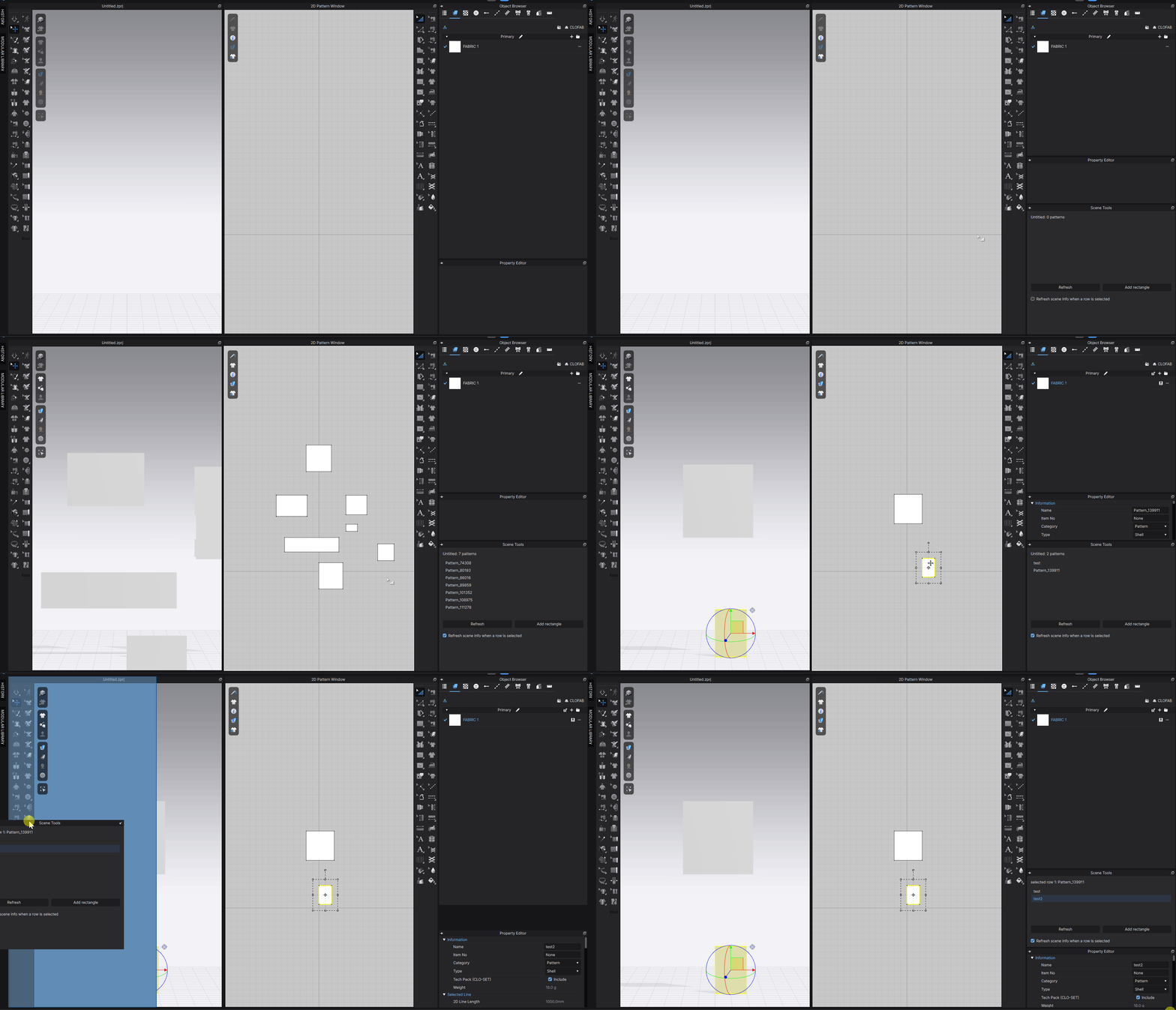
This tutorial builds a Pattern Browser: a table of every pattern piece; selecting a row selects the piece in CLO and lets the user rename it.
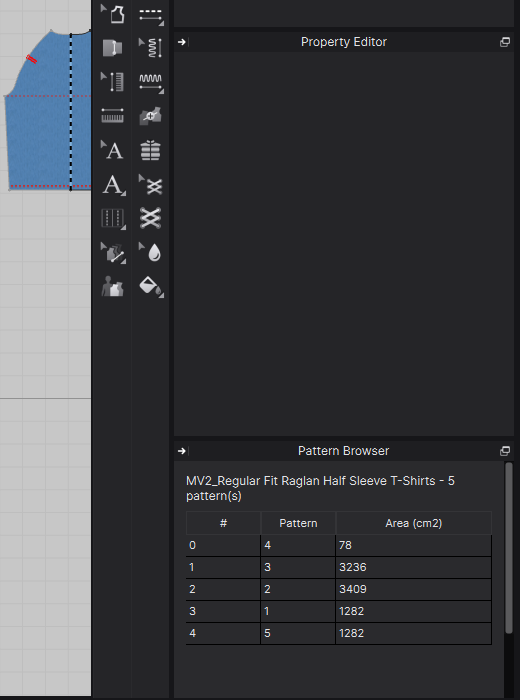
Step 1: create the panel. Give it a side (left, right or bottom) and a stable name.
With the same name, the panel returns to the place the user moved it to, in later runs and sessions.
panel = gui_api.CreateDockPanel("Pattern Browser", "right", "pattern_browser")
Step 2: a table with a selection callback. AddTable takes the column captions and the rows; the
callback receives the selected row. Here it selects the pattern in the 2D and 3D windows.
def on_select(row):
    pattern_api.SelectPatternViaIndex(row, False)
    gui_api.SetWidgetValue(ui["new_name"], pattern_api.GetPatternPieceName(row))
    gui_api.SetWidgetEnabled(ui["rename_row"], True)

ui["table"] = gui_api.AddTable(panel, ["#", "Pattern", "Area (cm2)"], [], on_select)
Step 3: fill and refresh. SetTableRows replaces every row. Call it whenever the scene may have
changed.
def refresh():
    rows = [[str(i), pattern_api.GetPatternPieceName(i), "%.0f" % (pattern_api.GetPatternPieceArea(i) / 100.0)]
            for i in range(pattern_api.GetPatternCount())]
    gui_api.SetTableRows(ui["table"], rows)
Step 4: enable controls only when they make sense. SetWidgetEnabled works on any widget and on
whole rows and groups. The rename row is greyed out until a pattern is selected.
ui["rename_row"] = gui_api.AddRow(panel)
ui["new_name"] = gui_api.AddTextInput(ui["rename_row"], "", "new name")
gui_api.AddButton(ui["rename_row"], "Rename", rename)
gui_api.SetWidgetEnabled(ui["rename_row"], False)
Full script: 03_dock_panel.py
# -*- coding: utf-8 -*-
"""gui_api tutorial 3: a dock panel, like the Library or Object Browser.

The panel docks into the CLO main window, can be dragged to another side, floated or folded into the
side bar, and keeps its place the next time it is created with the same name.
"""
import gui_api
import pattern_api
import utility_api

if not gui_api.IsGuiAvailable():
    raise SystemExit("gui_api needs the CLO window (it is not available in headless mode)")

gui_api.CloseAllWindows()  # running the script again replaces the old panel

panel = gui_api.CreateDockPanel("Pattern Browser", "right", "pattern_browser")
ui = {}


def refresh():
    count = pattern_api.GetPatternCount()
    rows = []
    for i in range(count):
        name = pattern_api.GetPatternPieceName(i) or "(unnamed)"
        area_cm2 = pattern_api.GetPatternPieceArea(i) / 100.0
        rows.append([str(i), name, "%.0f" % area_cm2])
    gui_api.SetTableRows(ui["table"], rows)
    gui_api.SetWidgetText(ui["status"], "%s - %d pattern(s)" % (utility_api.GetProjectName() or "(untitled)", count))
    gui_api.SetWidgetEnabled(ui["rename_row"], False)


def on_select(row):
    if row < 0:
        return
    pattern_api.SelectPatternViaIndex(row, False)  # highlight the piece in the 2D / 3D windows
    gui_api.SetWidgetValue(ui["new_name"], pattern_api.GetPatternPieceName(row))
    gui_api.SetWidgetEnabled(ui["rename_row"], True)


def rename():
    row = gui_api.GetWidgetSelectedIndex(ui["table"])
    new_name = gui_api.GetWidgetValue(ui["new_name"]).strip()
    if row >= 0 and new_name:
        pattern_api.SetPatternPieceName(row, new_name)
        refresh()
        gui_api.SetWidgetSelectedIndex(ui["table"], row)


ui["status"] = gui_api.AddLabel(panel, "")
ui["table"] = gui_api.AddTable(panel, ["#", "Pattern", "Area (cm2)"], [], on_select)

ui["rename_row"] = gui_api.AddRow(panel)
ui["new_name"] = gui_api.AddTextInput(ui["rename_row"], "", "new name")
gui_api.AddButton(ui["rename_row"], "Rename", rename)

gui_api.AddButton(panel, "Refresh", refresh)

refresh()
gui_api.ShowWindow(panel)
4. Live previews of the 3D and 2D windows
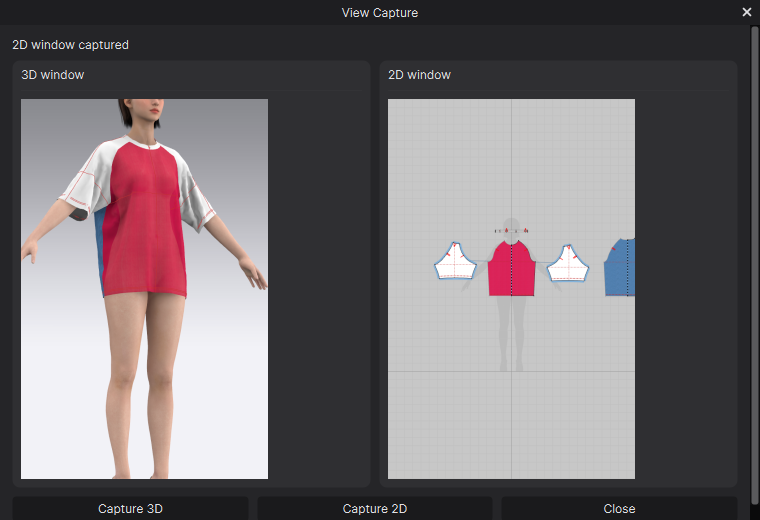
export_api.ExportThumbnail3D and export_api.ExportThumbnail2D save what the 3D and 2D windows show
right now. AddImage displays a PNG or JPEG file inside a window, scaled to the size you give, and
SetWidgetValue with a new path replaces the picture in place.
shown = {}

def show(key, group, path):
    if key in shown:
        gui_api.SetWidgetValue(shown[key], path)          # replace the picture
    else:
        shown[key] = gui_api.AddImage(group, path, 340, 380)

gui_api.AddButton(buttons, "Capture 3D", lambda: show("3D", group_3d, export_api.ExportThumbnail3D(PATH_3D)))
gui_api.AddButton(buttons, "Capture 2D", lambda: show("2D", group_2d, export_api.ExportThumbnail2D(PATH_2D)))
The same pattern works for any image your script produces: a texture, a chart, a render.
Full script: 04_view_capture.py
# -*- coding: utf-8 -*-
"""gui_api tutorial 4: show captures of the 3D and 2D windows inside a tool window.

ExportThumbnail3D / ExportThumbnail2D save what the windows show right now; AddImage displays a file
and SetWidgetValue swaps it for a new one.
"""
import os
import tempfile

import export_api
import gui_api

if not gui_api.IsGuiAvailable():
    raise SystemExit("gui_api needs the CLO window (it is not available in headless mode)")

gui_api.CloseAllWindows()

PATH_3D = os.path.join(tempfile.gettempdir(), "gui_api_capture_3d.png").replace(os.sep, "/")
PATH_2D = os.path.join(tempfile.gettempdir(), "gui_api_capture_2d.png").replace(os.sep, "/")

window = gui_api.CreateToolWindow("View Capture", 760, 520)
caption = gui_api.AddLabel(window, "press a button to capture")
images = gui_api.AddRow(window)
group_3d = gui_api.AddGroup(images, "3D window")
group_2d = gui_api.AddGroup(images, "2D window")
shown = {}


def show(key, group, path):
    if not path:
        gui_api.SetWidgetText(caption, "%s capture failed" % key)
        return
    if key in shown:
        gui_api.SetWidgetValue(shown[key], path)  # replace the picture in place
    else:
        shown[key] = gui_api.AddImage(group, path, 340, 380)
    gui_api.SetWidgetText(caption, "%s window captured" % key)


buttons = gui_api.AddRow(window)
gui_api.AddButton(buttons, "Capture 3D", lambda: show("3D", group_3d, export_api.ExportThumbnail3D(PATH_3D)))
gui_api.AddButton(buttons, "Capture 2D", lambda: show("2D", group_2d, export_api.ExportThumbnail2D(PATH_2D)))
gui_api.AddButton(buttons, "Close", lambda: gui_api.CloseWindow(window))

gui_api.ShowWindow(window)
Workflow samples
These complete tools combine the GUI API with the rest of the CLO API. Use them as they are, or as a starting point for your own tools.
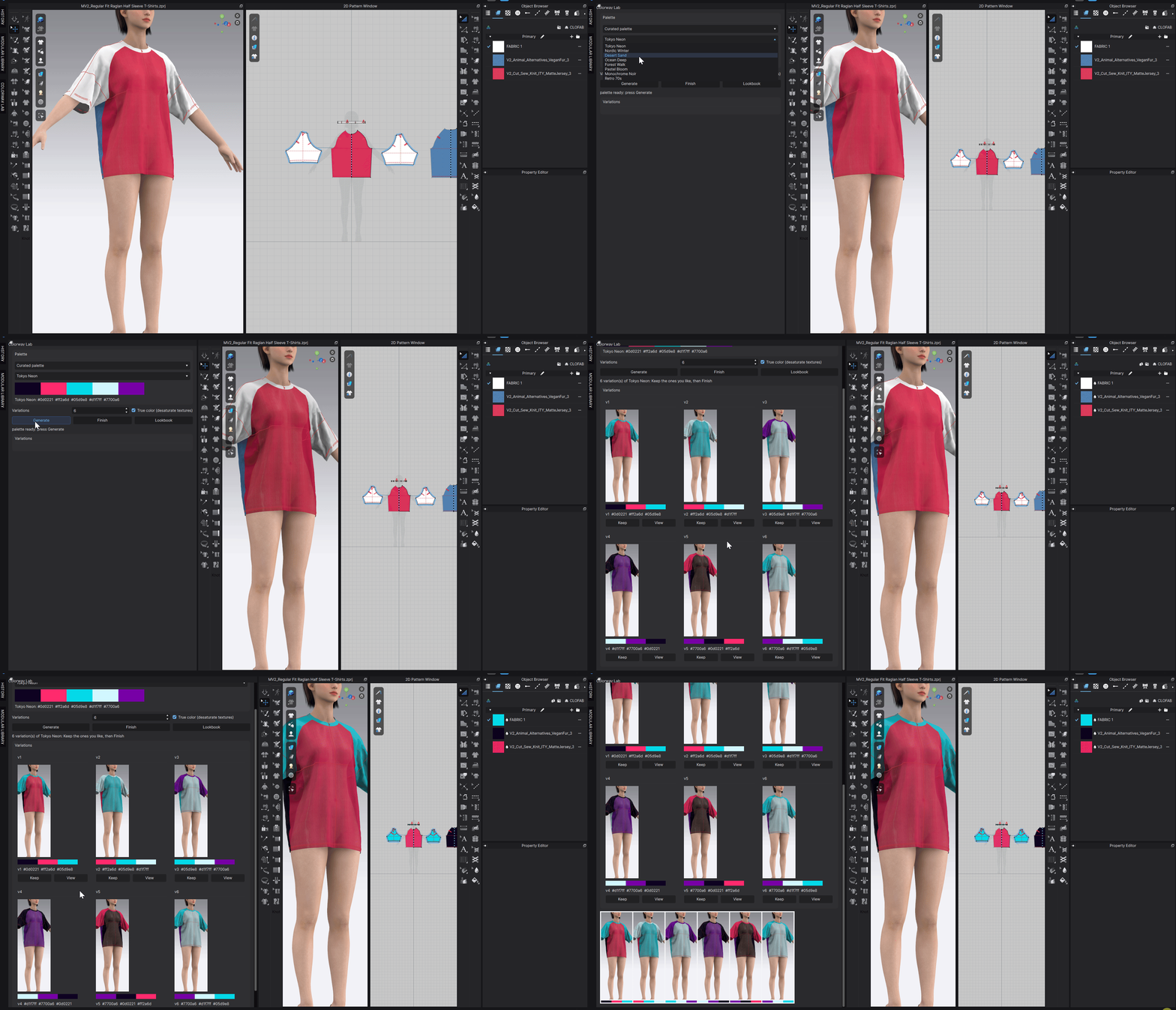
Colorway Lab
Turns a mood board image, a base color with a harmony rule, or a curated palette into up to six colorway options of the open garment. Every option is rendered and shown with its palette; keep the ones you like, and the panel adds them to the project as real colorways and writes a lookbook image.
Project Doctor
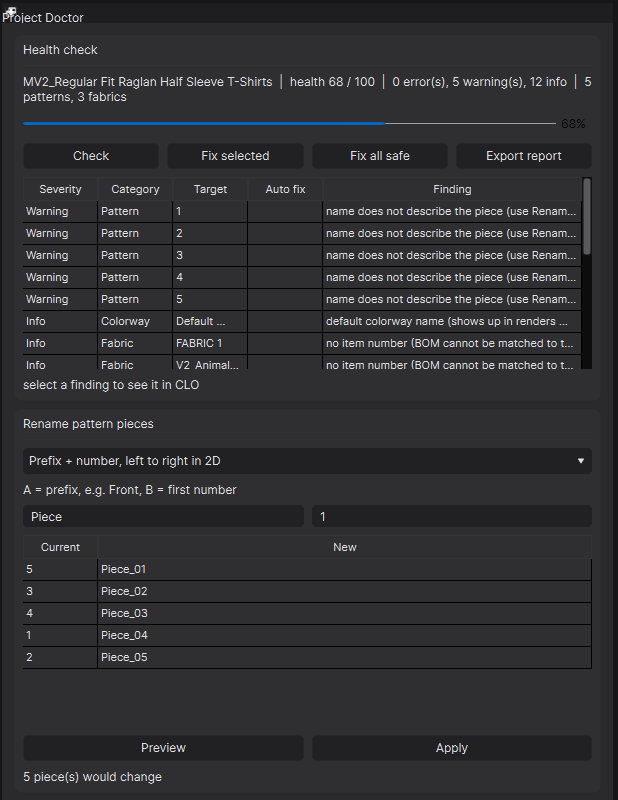
Checks a project before it goes to a vendor or into a tech pack: duplicate or meaningless pattern names, pieces that are not sewn, fabrics without an item number, library entries nobody uses, oversized textures and default names. Shows a health score, selects the piece behind a finding, fixes the safe findings, renames pieces in bulk with a preview and writes a CSV and Markdown report.
BOM Workflow
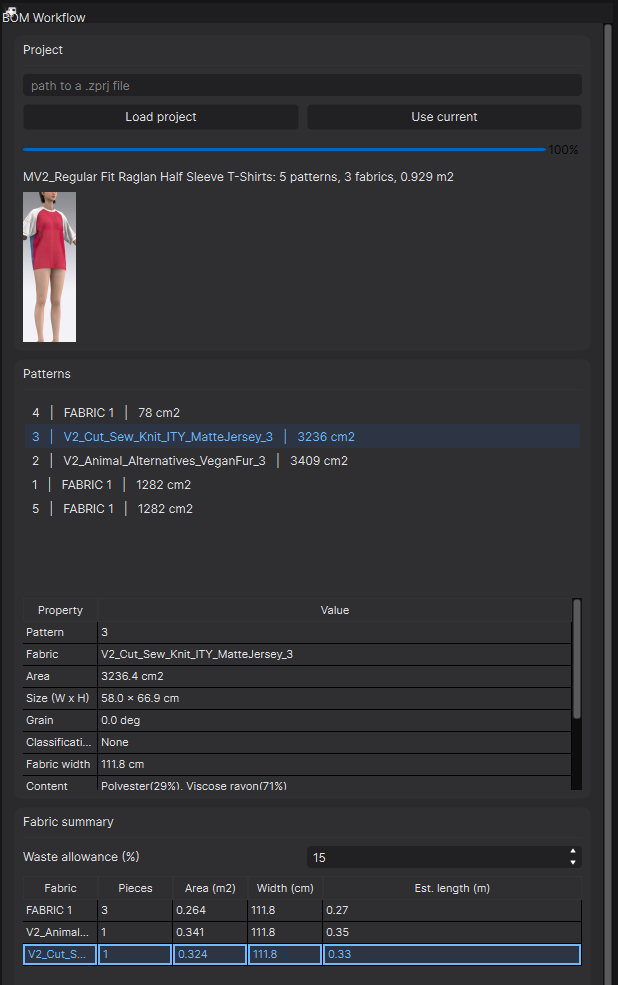
Loads a project, lists every pattern with its fabric, size and grain, and summarises the fabrics with piece count, total area and an estimated length. Exports the summary as CSV or the full BOM package.
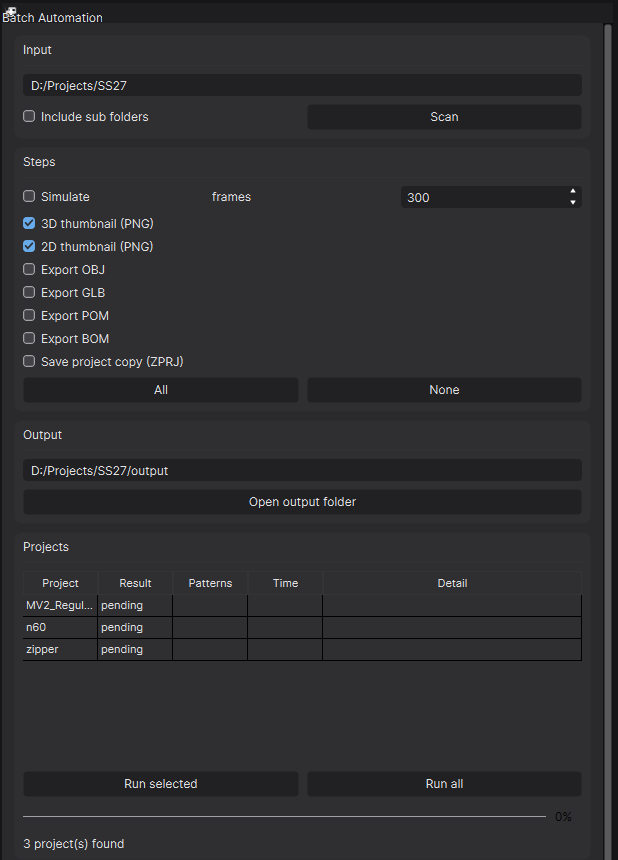
Batch Automation
Runs a pipeline over a folder of projects: simulate, 3D and 2D thumbnails, OBJ, GLB, POM, BOM and a project copy, with a result table per project and a CSV run log.
Note
The batch runs inside the button callback, so CLO is busy until the last project is done.
Tips and troubleshooting
Nothing appears. Check
gui_api.IsGuiAvailable(). Windows needShowWindow; a handle of0means the parent handle was not valid.Two windows after a second run. Call
gui_api.CloseAllWindows()at the top of the script.A value looks wrong. Values are text: compare a check box with
"true", convert numbers withfloat()/int().A callback does nothing. It may have raised an exception; CLO logs it and keeps the window open. Wrap the work in
try/exceptand report the error in a label while developing.The window freezes during a long job. The callback is still running. Split the work, or show a progress bar and a status message before starting.
Saving the user’s settings. Write them to a JSON file when they change and read it back when the script starts, as the Batch Automation sample does.